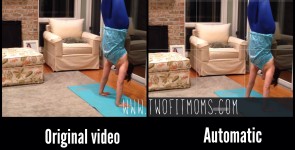
About a year ago, Instagram moved into the realm of video sharing. Now, not only can you share your favorite photos with the world, but you can also share your favorite 15-second video clips. If you are already familiar with Instagram, you know that the format of this photo/video-sharing app allows you to post a square-shaped image. This sounds reasonable enough, until one day, you load an amazing panoramic or vertical video onto Instagram and discover that the automatic square-shaped cropping results in some of your body parts or some of your amazing view being cropped out of sight.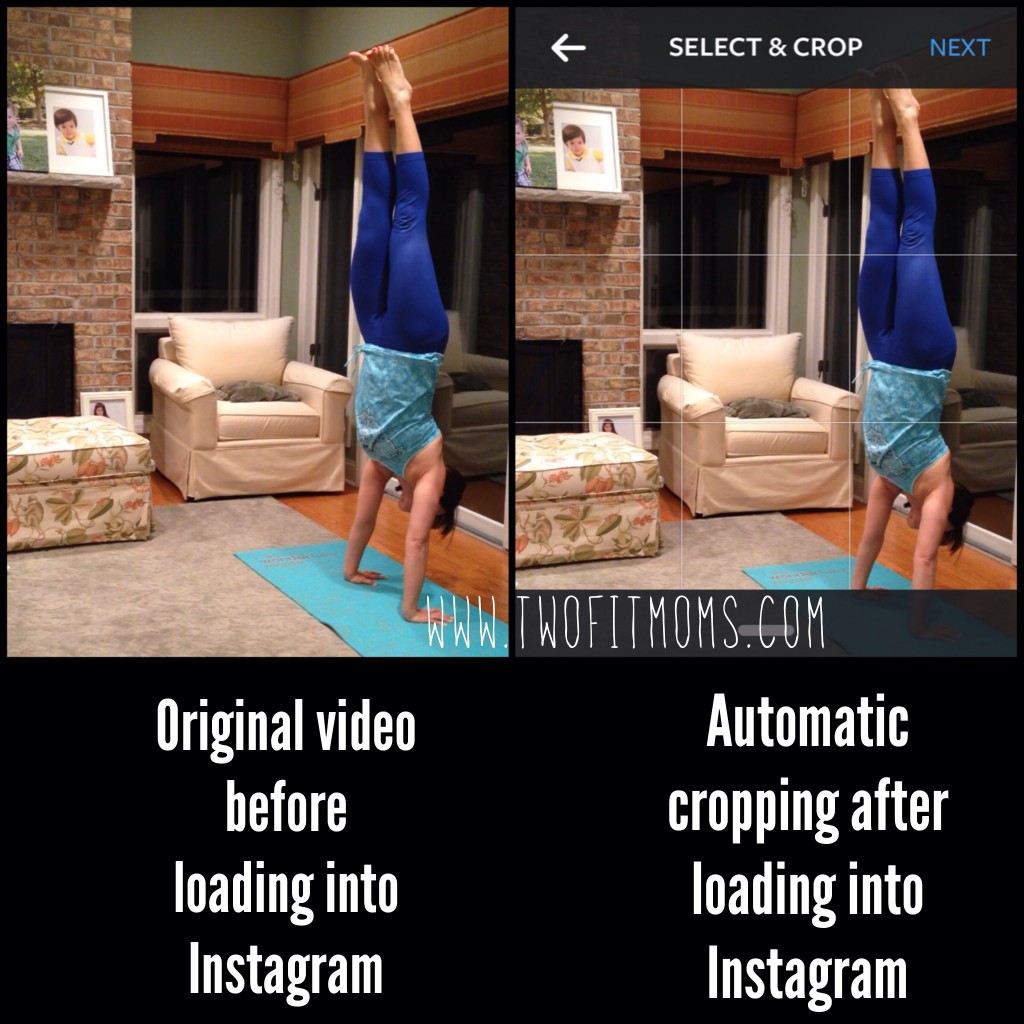
The image on the left is a screenshot of a video that I took on my iphone. Looks great, right? The image on the right is a screenshot of the automatic cropping that occurs as soon as the video is loaded into Instagram. My legs and hands are cut off!!
No need to panic. Gone are the days of having to re-shoot your video to adjust your distance from the camera. Here are two of our favorite video cropping apps to help you navigate the Instagram world of square cropping.
Video App 1: Squaready for Video App
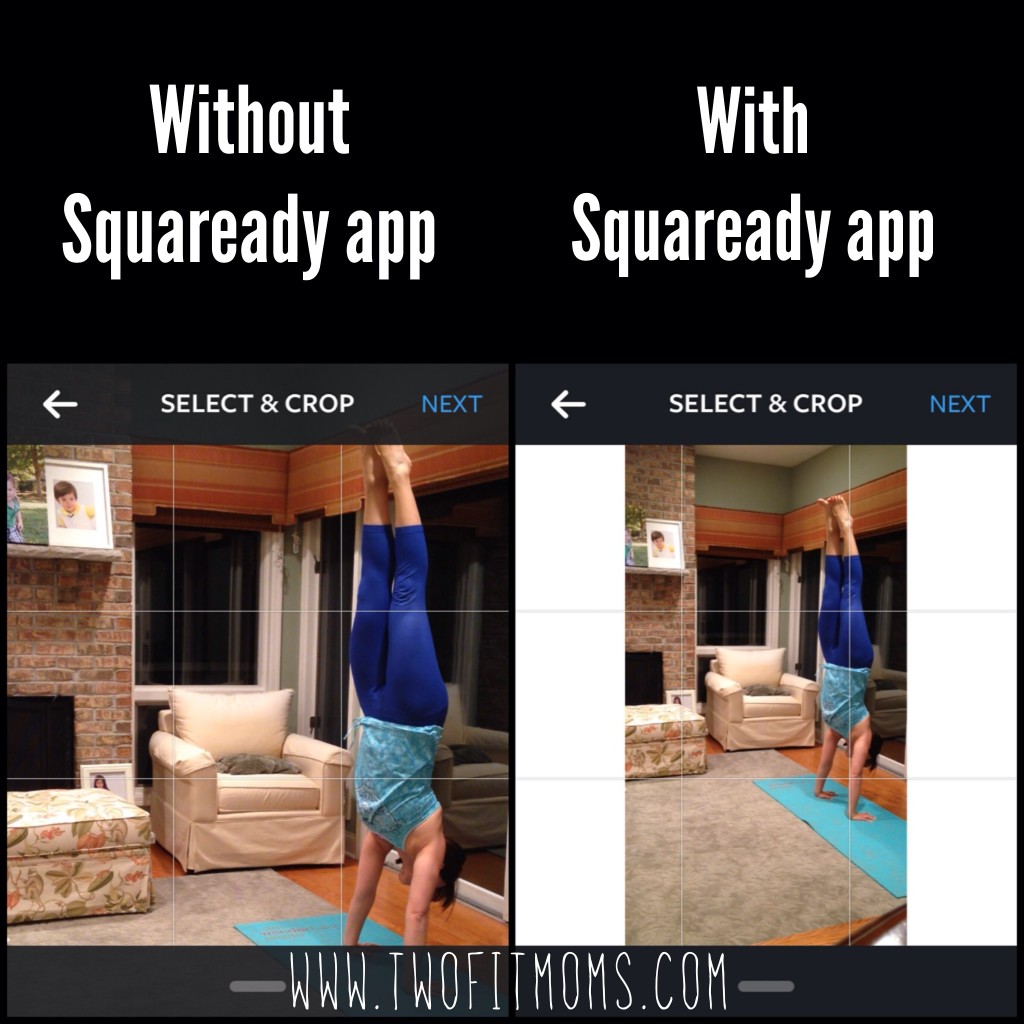
Download the free “Squaready for Video” app onto your phone. Upload your video into the app, and it will automatically put your full video into a square shape by adding borders in the color of your choice. This is a great option if the subject of your video occupies a large portion of the frame, as shown in my example. This app allows you to maintain the entire image without any square cropping at all. When you upload your video after using the Squaready app, your video will appear in Instagram as shown below. As you can see, I’ve chosen white borders to fill in the empty portions of the Instagram square.
Video App 2: Video Crop & Zoom
The second video app that we love is the “Video Crop & Zoom” app. This app allows you to zoom in on any portion of a video and crop it into a square shape for Instagram as shown below. By having the capability to zoom in on the subject, you can eliminate unwanted background/foreground.
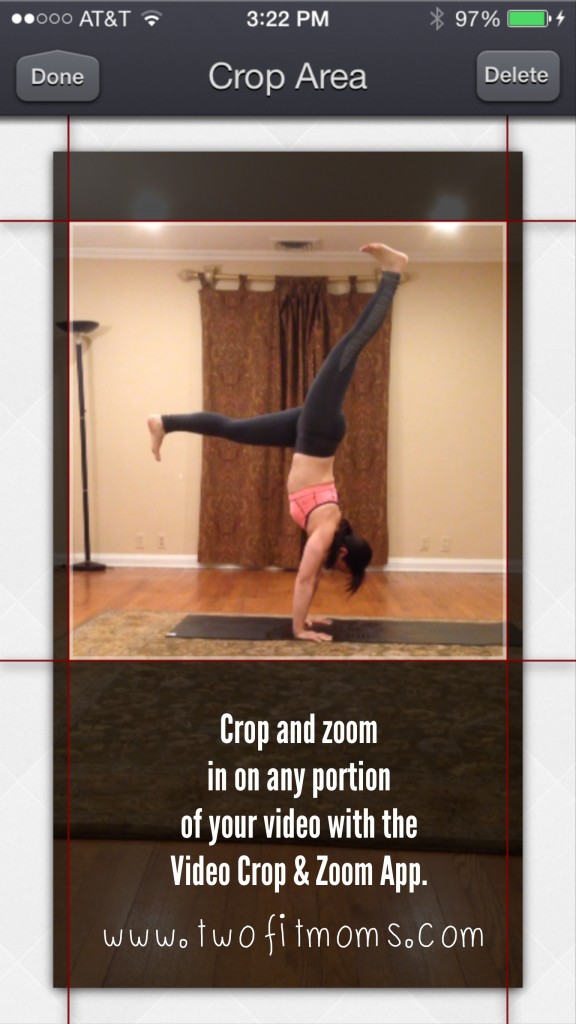
Although this process is a bit more time consuming than just loading the video directly onto Instagram, I prefer having a video that fills the full square frame.
Download one or both of these apps! You may find that both of these apps are helpful in different situations.
If you would like to see any other Instagram Quick Tip topic covered, please leave us a message!
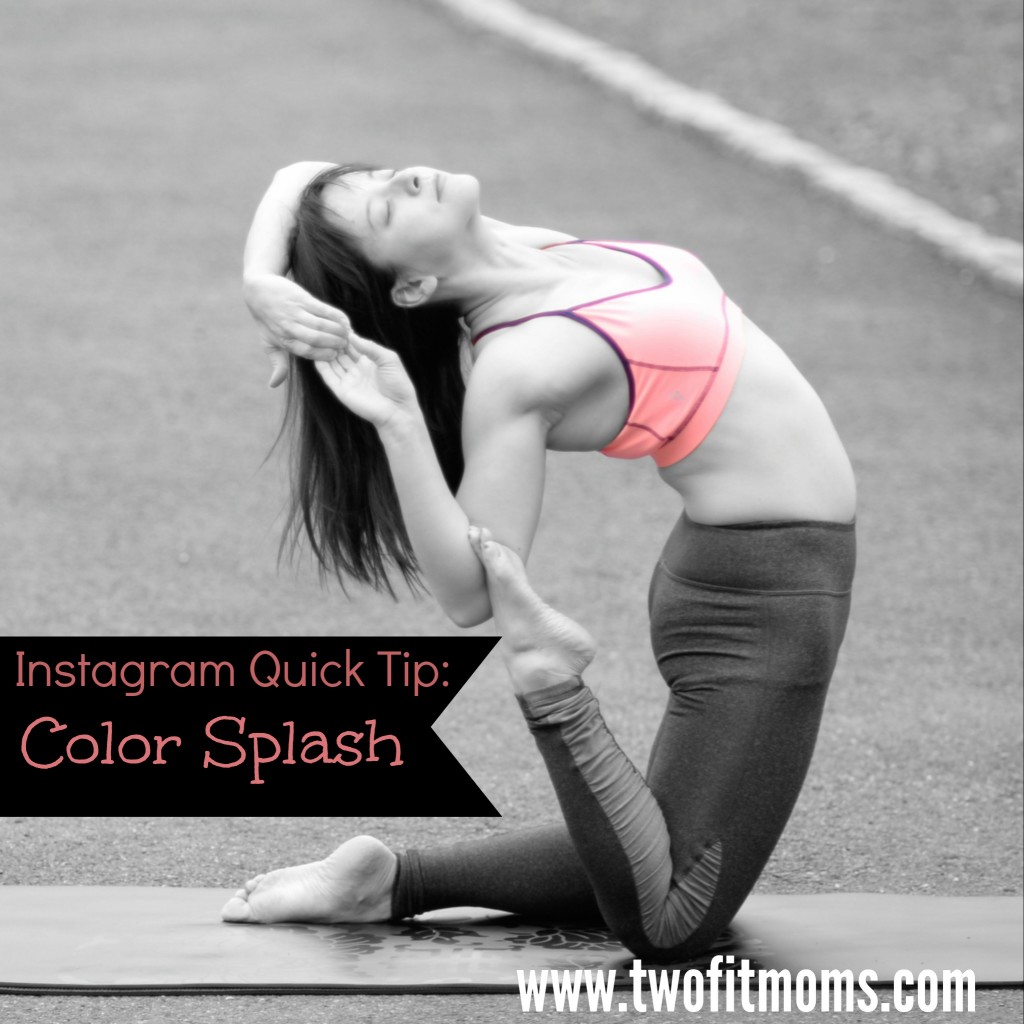
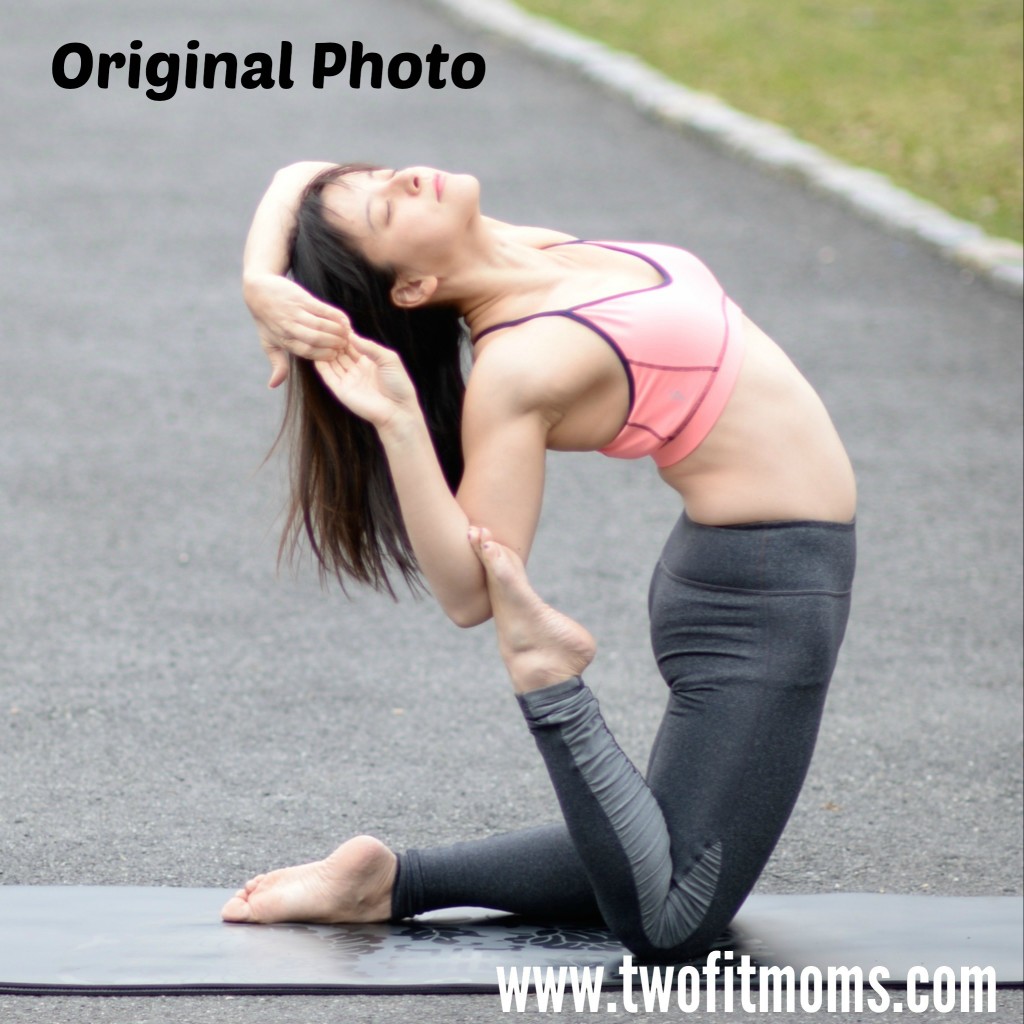 Take a look at my original photo. It’s fine as is, but the bright pink color of my top is competing with the green grass in the background. By converting the entire image to black and white, I can remove the background noise and focus on my clothing.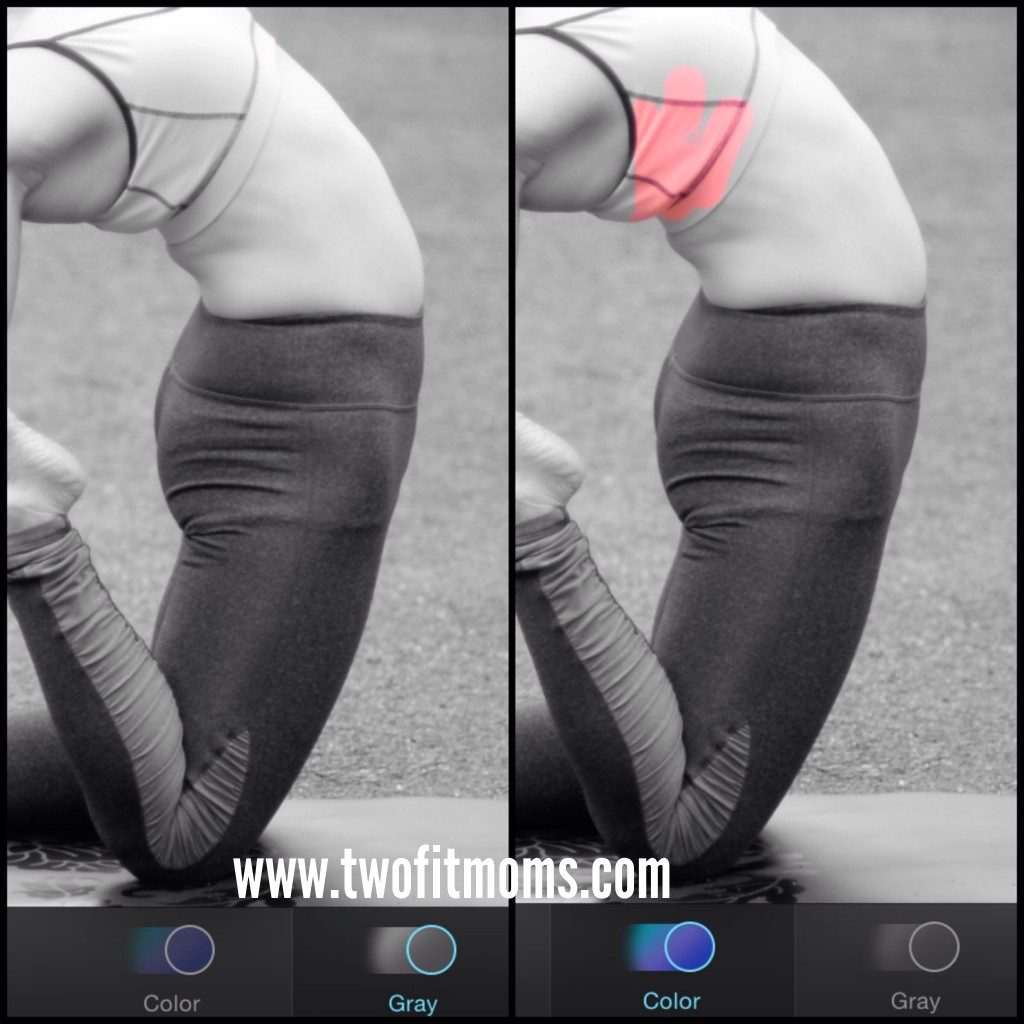
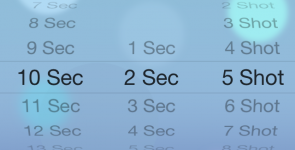
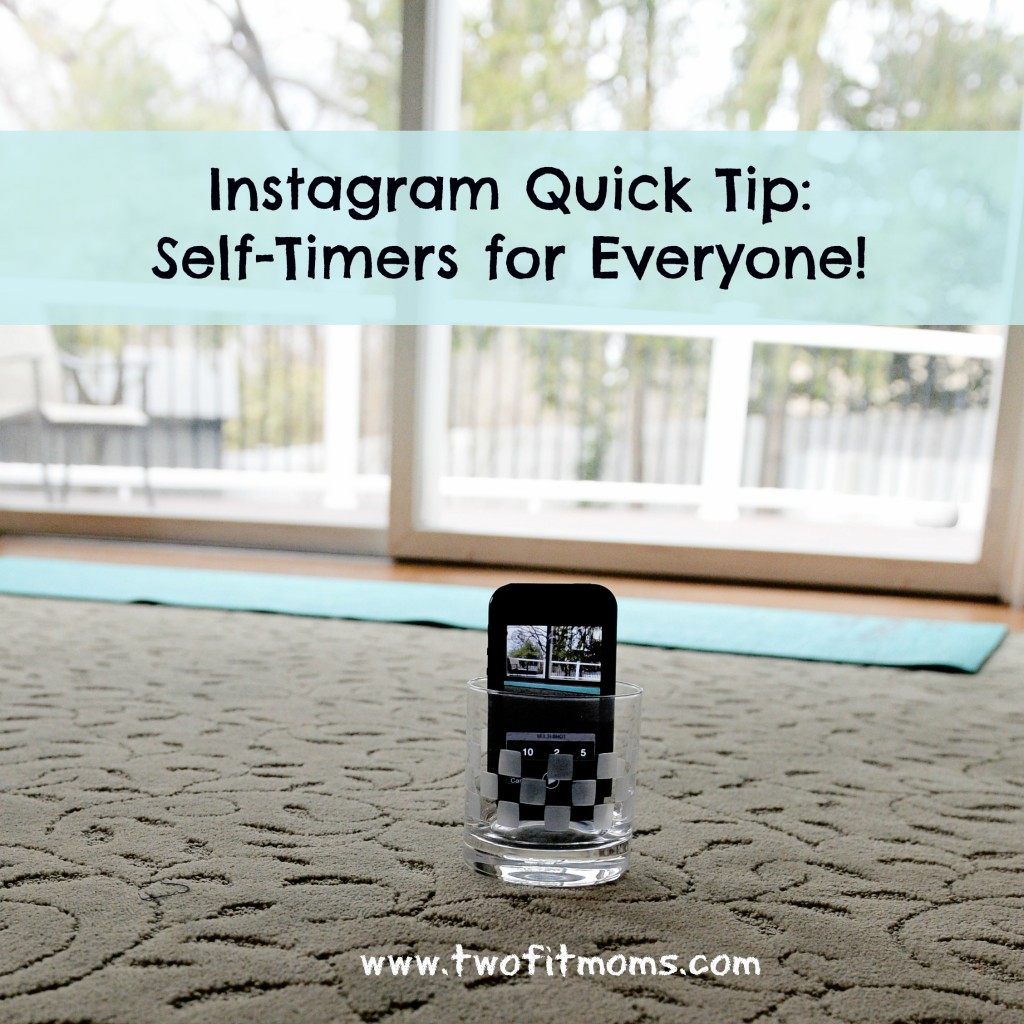
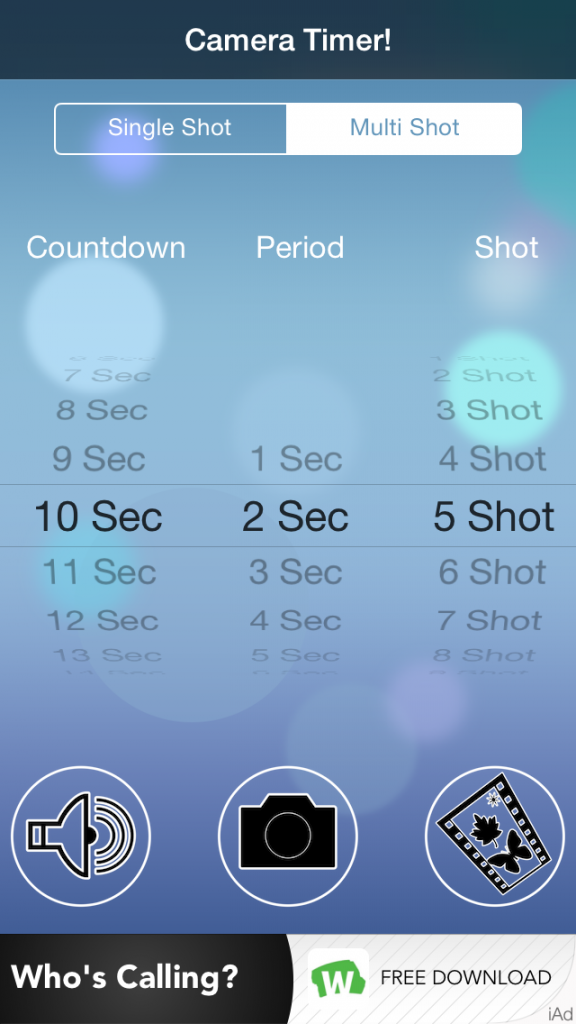 First, set your “countdown”, which is the amount of time that you think you need to get from your phone to your yoga mat and get into your first pose. You might need anywhere between 10 and 20 seconds. Play around with this number. You can also set your “period”, which is the length of time between photos. I prefer two seconds between shots. Finally, you can decide on how many photos you’d like the camera to take. Five photos always seems like a good number to me. Once you set your “countdown”, “period” and “shot”, you are ready to go. Place your phone into a short glass (as explained in my first